Getting Started
Logging In and Navigation
Learn how to sign in to the system and navigate using the main dashboard and sidebar menu.
Access your professional development platform and learn to navigate between Learn and Observe modules effectively.
Signing In
Section titled “Signing In”Access Your Account
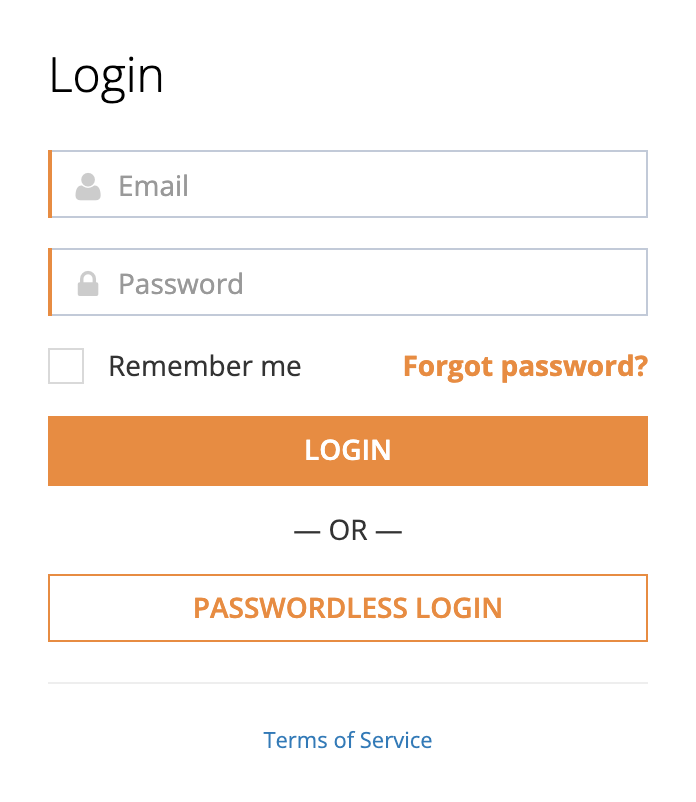
Section titled “Access Your Account”- Navigate to your organization’s Edge login page
- Enter your email address and password
- Click Sign In
- You’ll be directed to your personalized dashboard
First-Time Login
Section titled “First-Time Login”If this is your first login, you may need to:
- Set up your password using the link from your welcome email
- Complete your profile information
- Review your assigned roles and permissions
Dashboard Overview
Section titled “Dashboard Overview”Understanding Your Dashboard
Section titled “Understanding Your Dashboard”Your dashboard displays different content based on your role and your organization’s activated modules:
Learn Content Tabs (when Learn module is activated):
- Required Content — Mandatory training assigned to you
- Continue Content — Training you’ve started but not completed
- Content Libraries — Available course collections
- Learning Paths — Structured learning sequences
- Individual Content — Standalone courses and materials
Observations Tab (when Observe module is activated):
- My Observations — Classroom observations you’ve received
- My Conducted Observations — Observations you’ve performed
- All Observations — Organization-wide observation data (administrators only)
Tab Navigation
Section titled “Tab Navigation”The dashboard uses sticky navigation tabs that remain visible as you scroll:
- Click any tab to jump to that section
- Content loads automatically when you select a tab
- Badge numbers show item counts for each category
Observation Dashboard Cards
Section titled “Observation Dashboard Cards”Role-Based Observation Access
Section titled “Role-Based Observation Access”Your observation dashboard shows different cards based on your roles:
Observable Role (Teachers/Staff):
- My Observations card shows how many times you’ve been observed
- Displays when your last observation occurred
- Click View to see detailed observation results
Observer Role (Coaches/Administrators):
- My Conducted Observations card shows classrooms you’ve observed
- Tracks your observation activity and last observation date
- Click View to manage and review your conducted observations
Organization Administrator:
- All Observations card provides organization-wide statistics
- Shows total observations across your organization
- Click View for comprehensive observation reporting
Navigation Structure
Section titled “Navigation Structure”Sidebar Menu
Section titled “Sidebar Menu”The main navigation menu provides access to all platform features based on your role:
Learn Module Sections:
- My Content — Personal learning dashboard
- Content Libraries — Available course collections
- Learning Paths — Structured learning sequences
- Transcripts — Learning completion records
Observe Module Sections:
- My Observations — Personal observation history
- Conduct Observations — Start new observations (Observer role)
- Observation Reports — Analytics and reporting (Reporter role)
Administrative Sections:
- User Management — Manage staff and roles (administrators)
- Organization Settings — Configure platform features
- Reports — System-wide analytics and reporting
Breadcrumb Navigation
Section titled “Breadcrumb Navigation”Use breadcrumb navigation to:
- Understand your current location in the system
- Navigate back to parent sections
- Maintain context while exploring features
User Profile and Settings
Section titled “User Profile and Settings”Accessing Your Profile
Section titled “Accessing Your Profile”- Click your name or avatar in the top navigation
- Select My Profile from the dropdown menu
- Update your personal information and preferences
Available Settings
Section titled “Available Settings”Profile Information:
- Name and contact details
- Job title and organization
- Profile photo
Notification Preferences:
- Email notification settings
- Dashboard display options
- Learning reminder preferences
Password Management:
- Change your password
- Set up two-factor authentication (if available)
- Review security settings
Role-Specific Features
Section titled “Role-Specific Features”Understanding Your Roles
Section titled “Understanding Your Roles”Your dashboard and navigation options depend on your assigned roles:
Observable — Can view received observations and feedback Observer — Can conduct classroom observations Organization Administrator — Full access to organizational data and settings Reporter — Access to analytics and reporting features Evaluator — Can perform formal evaluations Proctor — Can manage assessment sessions
Feature Availability
Section titled “Feature Availability”Features appear in your navigation only if:
- You have the required role
- Your organization has activated the relevant module
- The feature is enabled in your organization’s settings
Contact your system administrator if you need access to additional features or roles.