

Forms & Rubrics
Adding Forms to Form Sets
Attach forms to a form set, set their order, scoring, and weights, and archive a form in one form set without affecting others.
A form set shows observers the forms attached to it, in the order you set. You might attach one long rubric form to a formal evaluation, or a short look-for form to a walkthrough.
Requires the Publisher or system administrator role, and content creation turned on for your district. See Form Sets Overview.
Attach a form
Section titled “Attach a form”- Go to System Administration > Form Sets and click the form set’s name.
- On the Forms tab, click Attach.
- In the Attach Form window, choose the form from the Form list.
- Check the Display Order. It starts at the next number after the forms already in the set. Forms appear to observers in this order, lowest first.
- Turn Include score? on if the form’s points count toward the form set’s score. Leave it off for a form that collects notes or context only.
- Click Attach.
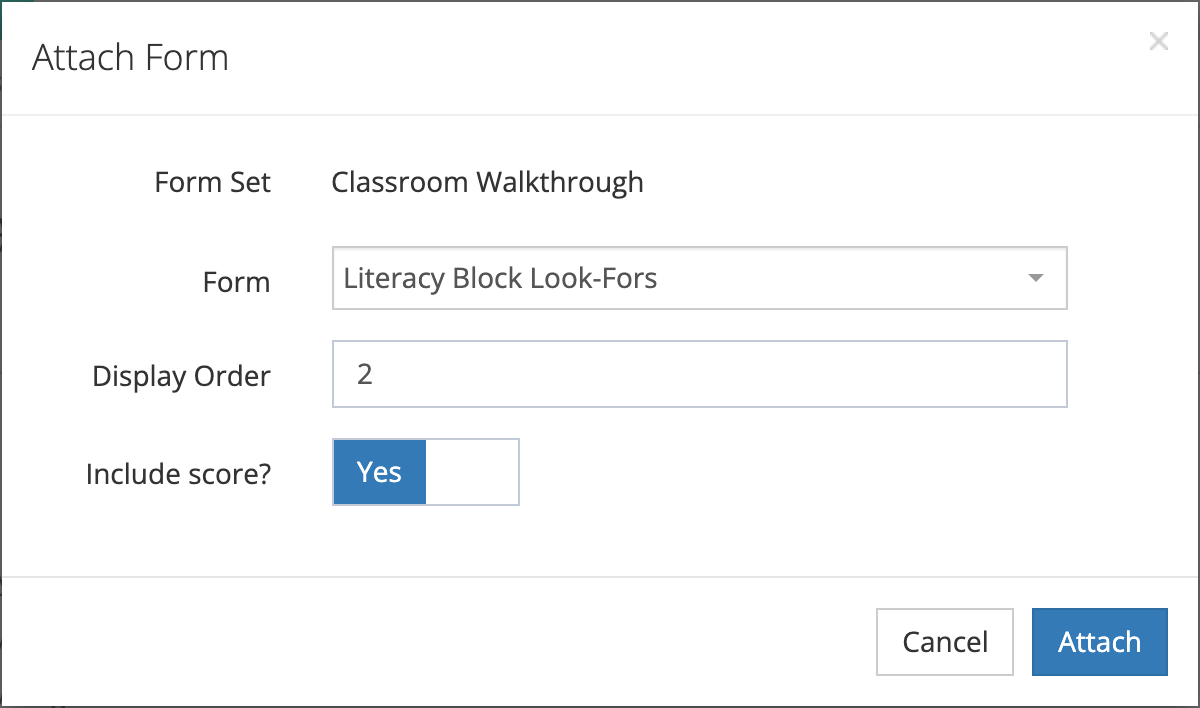
The Form list offers only active forms that are not already in this form set. If the set already includes every form in your account, the window says so instead of showing an empty list.
Attaching a form to a form set does not give any school access to it. A school can use the form only once it is granted to that school on its Form Grants tab. See Managing Form Access for Organizations.
The Forms tab
Section titled “The Forms tab”Each attached form shows its Display Order, Include Score, and Status in this form set. By default you see only active forms. Clear the Active checkbox beside the search box to include forms archived in this form set.
The Status column applies to this form set only. A form can also carry a Form archived or Form unpublished label next to its name. That label describes the form itself: a form marked Form archived or Form unpublished cannot start a new observation from any form set, whatever its status here.
Change a form’s order or scoring
Section titled “Change a form’s order or scoring”- On the Forms tab, click the … menu on the form’s row.
- Click Edit.
- Change Display Order or Include score?.
- Click Save.
Set form weights
Section titled “Set form weights”When a form set has more than one scored form, you can weight each form’s share of the form set’s score.
- On the Forms tab, click Weighted Values.
- Enter a weight for each form listed, such as
0.5. - Click Save.
The rules:
- Give every scored form a weight, or leave them all blank. You cannot weight some and not others.
- Each weight is between 0 and 1, and the weights must add up to 1.
- Only forms with Include score? turned on and at least one scorable section take a weight. The window lists the other forms as not scored.
If no form in the set is scored, the window says so and there is nothing to save.
Archive a form in this form set
Section titled “Archive a form in this form set”Archive a form in a form set when the set should stop offering it, for example when a revised form replaces last year’s version.
- On the Forms tab, click the … menu on the form’s row.
- Click Archive.
- Read the summary, then click Yes, Archive.
Once archived in this form set:
- The form no longer appears on a new observation (or performance review) built from this form set.
- Observations already recorded still display and score the form.
- Other form sets using the same form keep it.
- Schools granted the form keep their access.
To restore it, clear the Active checkbox, find the form, and click Activate in its row menu. A form archived in a form set is restored rather than attached again, which is why it does not appear in the Attach list.
Remove a form from a form set
Section titled “Remove a form from a form set”Remove from set appears in a form’s row menu only while nothing has been recorded against the form set. Click it, then click Yes, Remove. The form itself is not deleted and stays available to other form sets.
Once any observation or performance review exists for the form set, the option no longer appears. Archive the form in the form set instead, so the form stays available to the work already recorded.
How forms are scored together
Section titled “How forms are scored together”A form counts toward the form set’s score when Include score? is on and the form has at least one scored question (see Adding Questions and Configuring Scoring). Without weights, the form set score is the average of the scored forms the observer answered.
Inside each form, you can weight sections and questions. See Building Forms and Sections.
Make a form set available to schools
Section titled “Make a form set available to schools”A form set appears at a school when the school holds an active grant for at least one active form in the set. Grant forms from the school’s Form Grants tab, or from the district’s tab for several schools at once. See Managing Form Access for Organizations, and How Form Access Works when an observer cannot find a form.