

How-to Guides
How-to Guide: Coaching Cycles
Overview
Section titled “Overview”Coaching Cycles supports three groups of people, and this guide is organized around them:
- Administrators turn the feature on, set up cycle stages and templates, oversee assignments, and read the coaching reports.
- Coaches manage their roster, run visits, and assign and follow up on action steps.
- Teachers see their coaching in one read-only place.
Teachers see their own steps and their coach’s notes on completed steps. The assignment’s Notes (coach + admin) are shared only between the coach and administrators. Administrators can open an assignment and read its steps, but only the coach can change them.
For Administrators
Section titled “For Administrators”Turn Coaching Cycles on
Section titled “Turn Coaching Cycles on”Coaching Cycles is made available to your account by your account team. Once it is available, a system administrator switches it on.
- Under the admin Observe heading, open Settings (Observe Settings).
- Check Enable coaching cycles?.
- Optionally check Send coaching reminders?. Teachers then get email reminders as action-step check-back dates approach, and coaches get alerts when a visit is overdue. Unchecking it silences those emails without affecting other coaching emails.
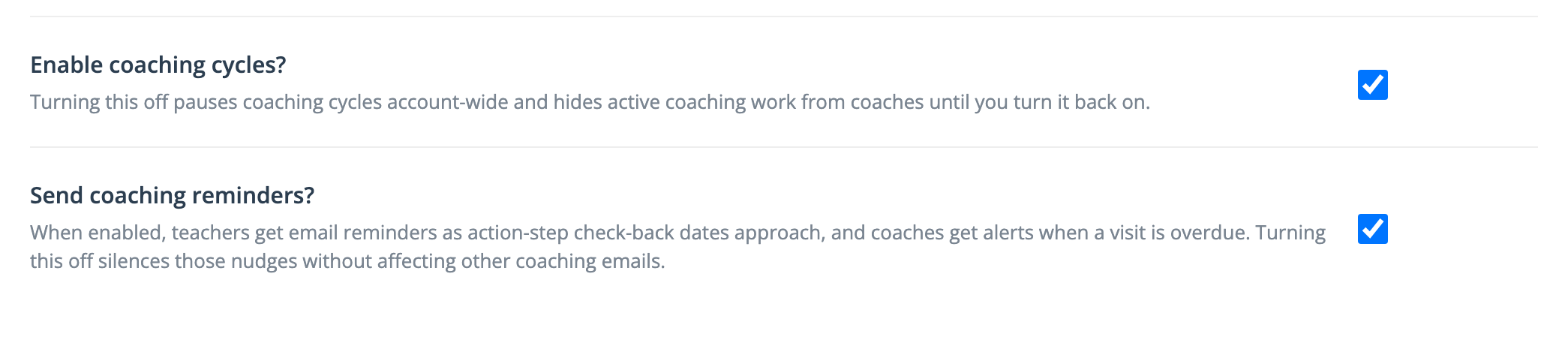
Note: Unchecking Enable coaching cycles? later pauses coaching account-wide and hides active coaching work until you turn it back on. Existing coaching records are kept.
Set up cycle stages and the template library
Section titled “Set up cycle stages and the template library”Organization and system administrators. Under the admin Observe heading, open Coaching:
- Cycle Stages name the phases of your coaching program (for example, a first-year coaching stage and a support stage) and set each stage’s expected visit interval. The interval drives the Due soon and Overdue markers coaches see.
- Action Step Templates are reusable, well-worded steps coaches pick from instead of retyping.
Both pages can load a starter set. See Cycle Stages & Action Step Templates.
Oversee assignments
Section titled “Oversee assignments”In the sidebar, open Coaching > All Assignments to see every assignment for the people you can access, with each one’s cadence, coach, teacher, school, stage, last visit, and active steps. You can start an assignment here with New Assignment and choose the coach.
Read the coaching reports
Section titled “Read the coaching reports”- Coaching Dashboard: in the sidebar under Dashboards. It shows who is being coached, how often, and how many action steps get done, for a date range, school, and coach you choose. See Coaching Dashboard & Reminders.
- Coaching Activity by Coach and Coaching Activity by School: open them from the dashboard’s Activity by Coach and Activity by School links, or from Reports > Coaching Reports if you hold the reporter role. Each has Export CSV.
For Coaches
Section titled “For Coaches”Find your roster
Section titled “Find your roster”In the sidebar, open Coaching > My Roster. It shows summary tiles, your open action steps across all your teachers grouped by when they are due, and a card per teacher with a cadence marker. See Coaching Roster & Assignments for each part.
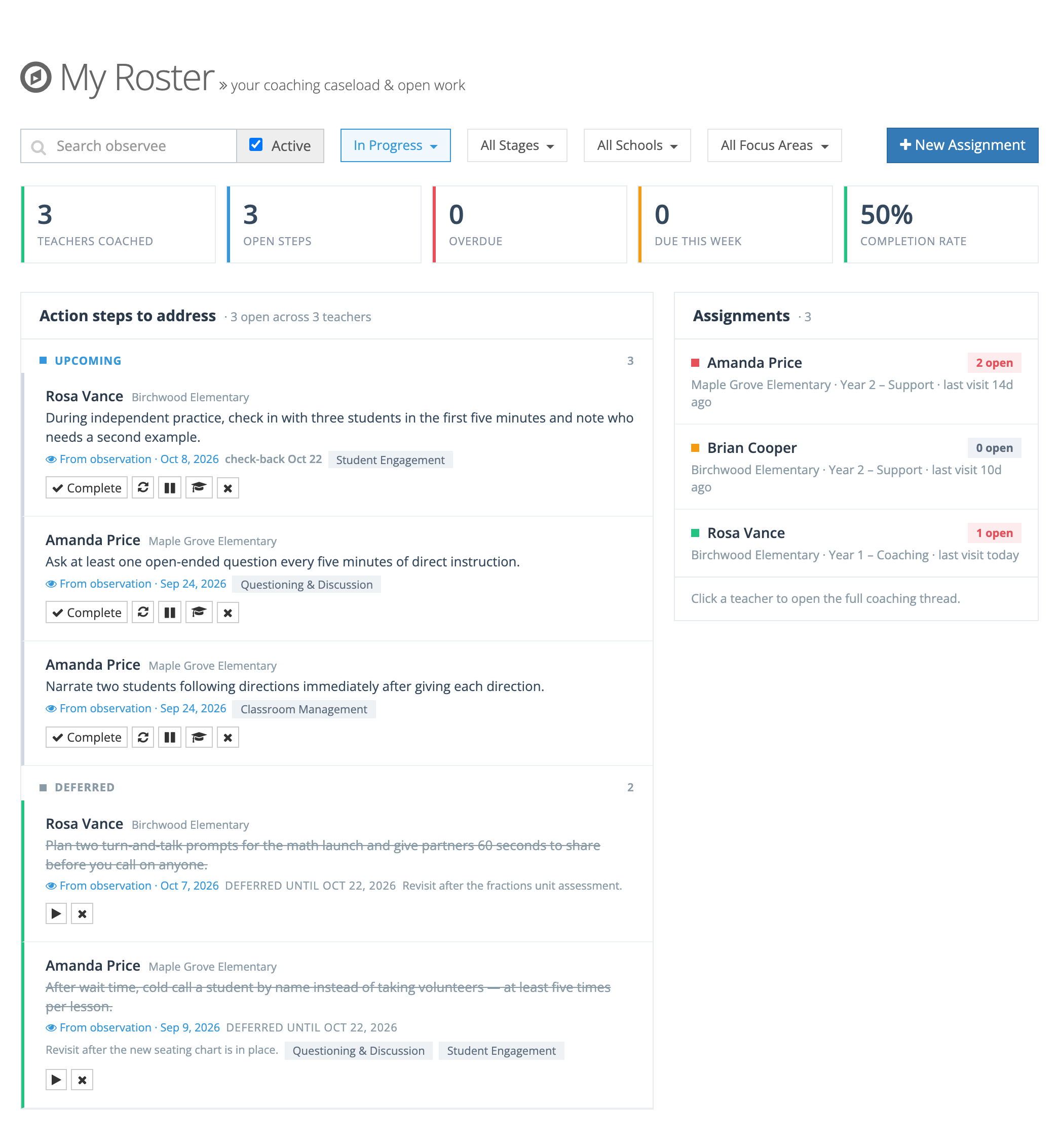
To add a teacher, click New Assignment. See Starting & Managing a Coaching Assignment.
Click a teacher’s card to open the assignment: pending, deferred, and resolved steps, a timeline of your observations of that teacher, focus areas, stage, and the New Observation button.
Run a visit and assign action steps
Section titled “Run a visit and assign action steps”- Start the observation (from the assignment’s New Observation button or the usual way). When you pick the teacher, a reminder panel lists their pending steps from earlier visits.
- Save the draft. On the observation page, the coaching panels list Pending action steps and New from this visit.
- Click + Add Action Step, pick from the library or write your own, add focus areas and an optional Check back by date, and click Assign Action Step.
- Submit the observation. The teacher sees the new steps once it is submitted.
Each step has Complete (on a submitted observation), Revise, Defer, Recommend a course (see below), and Remove. A deferred step shows Resume to bring it back. See Action Steps for what each control does, including carrying steps forward from an earlier cycle.
Recommend a course
Section titled “Recommend a course”If your account has Learn, you can attach a course to any action step.
- On the step, click the Recommend a course icon.
- In the Recommend a course window, filter by category on the left or type in Search courses by name….
- Select a course and click Recommend.
The recommendation shows on the step and updates as the teacher progresses: Recommended, then Enrolled, then Completed. To take it back, click the × on it.
Note: If no courses are licensed to your organization yet, the window says there is nothing to recommend.
Reminders
Section titled “Reminders”If your administrator has turned on coaching reminders, you get an email titled You have coaching visits that are overdue listing your in-progress assignments that are overdue or not yet started.
For Teachers
Section titled “For Teachers”See your coaching
Section titled “See your coaching”In the sidebar, open My Coaching. The page is read-only:
- It leads with your current action step, in your coach’s words, and the focus areas you are working on.
- Also keeping up lists any other active steps.
- Part of how you teach now shows the steps you have completed, with your coach’s note.
- Set aside for now holds deferred steps, and Earlier coaching keeps past assignments.
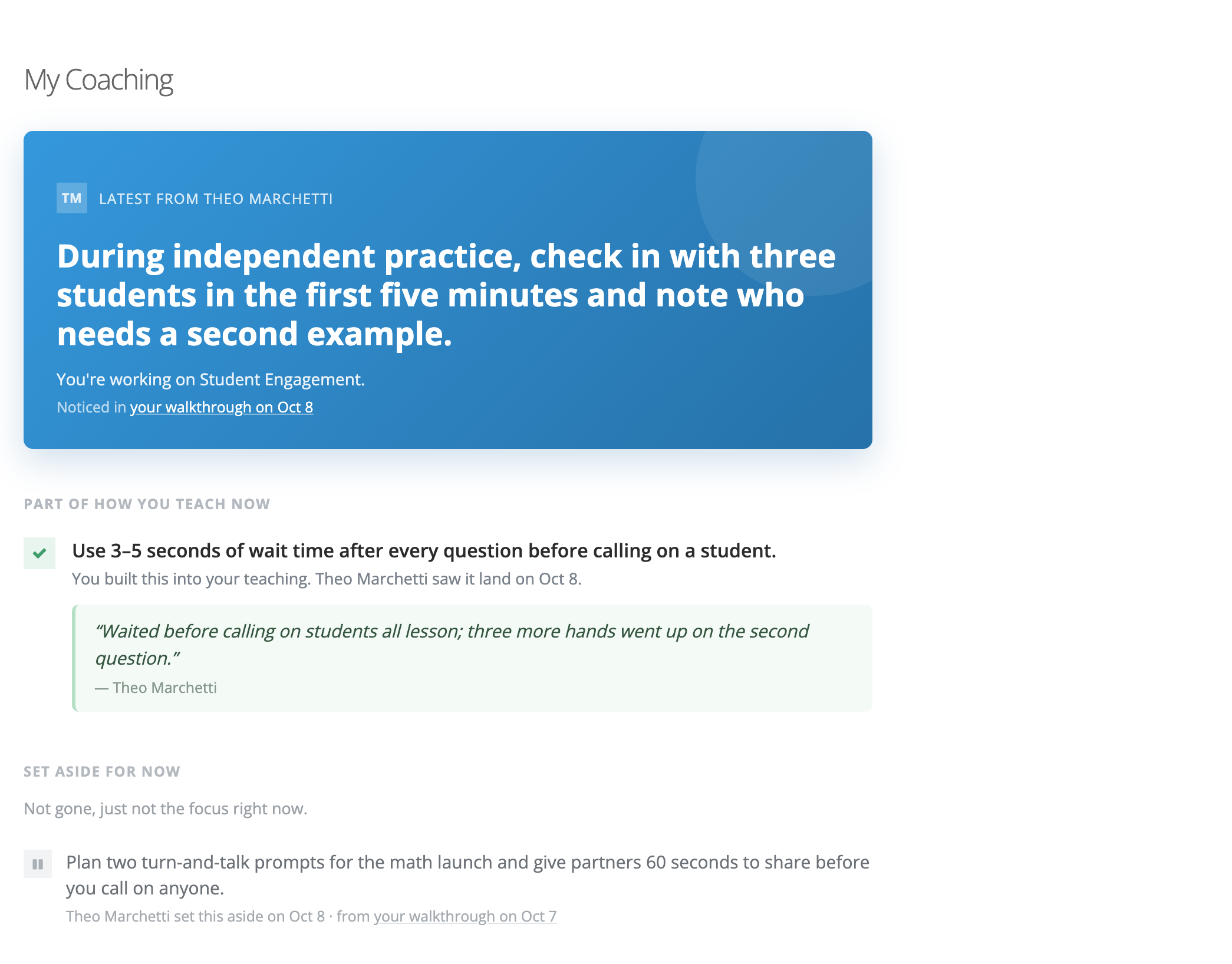
A Coaching panel also appears on your submitted observations, with a See full coaching history link back to this page.
Reminders
Section titled “Reminders”If reminders are on for your account, you get an email titled Your coaching action steps are coming due two days before a step’s check-back date and on the date itself. There is nothing to click or confirm.
Summary
Section titled “Summary”- Administrators turn coaching on in Observe Settings, set up Cycle Stages and Action Step Templates, oversee All Assignments, and read the Coaching Dashboard and coaching activity reports.
- Coaches work from Coaching > My Roster, assign and manage action steps (Complete, Revise, Defer, Remove), and can recommend a course when Learn is on.
- Teachers follow their coaching from My Coaching.
- Reminders are optional and separate from other coaching emails.