

Assessments
Taking Assessments
Open an assessment, answer the questions, grade your exam, and retake it if you did not pass.
This article walks you through taking an assessment that is not proctored. If the card says Proctored, start with Proctored Assessments; the exam itself works the same way once your session starts.
Who can do this: any staff member whose school is assigned the assessment.
Open the assessment
Section titled “Open the assessment”- In the My Home sidebar, under LEARN, select Assessments.
- Find the assessment. Use Search name, or the Required or Not Started filter.
- Select the play button on the right of its card.
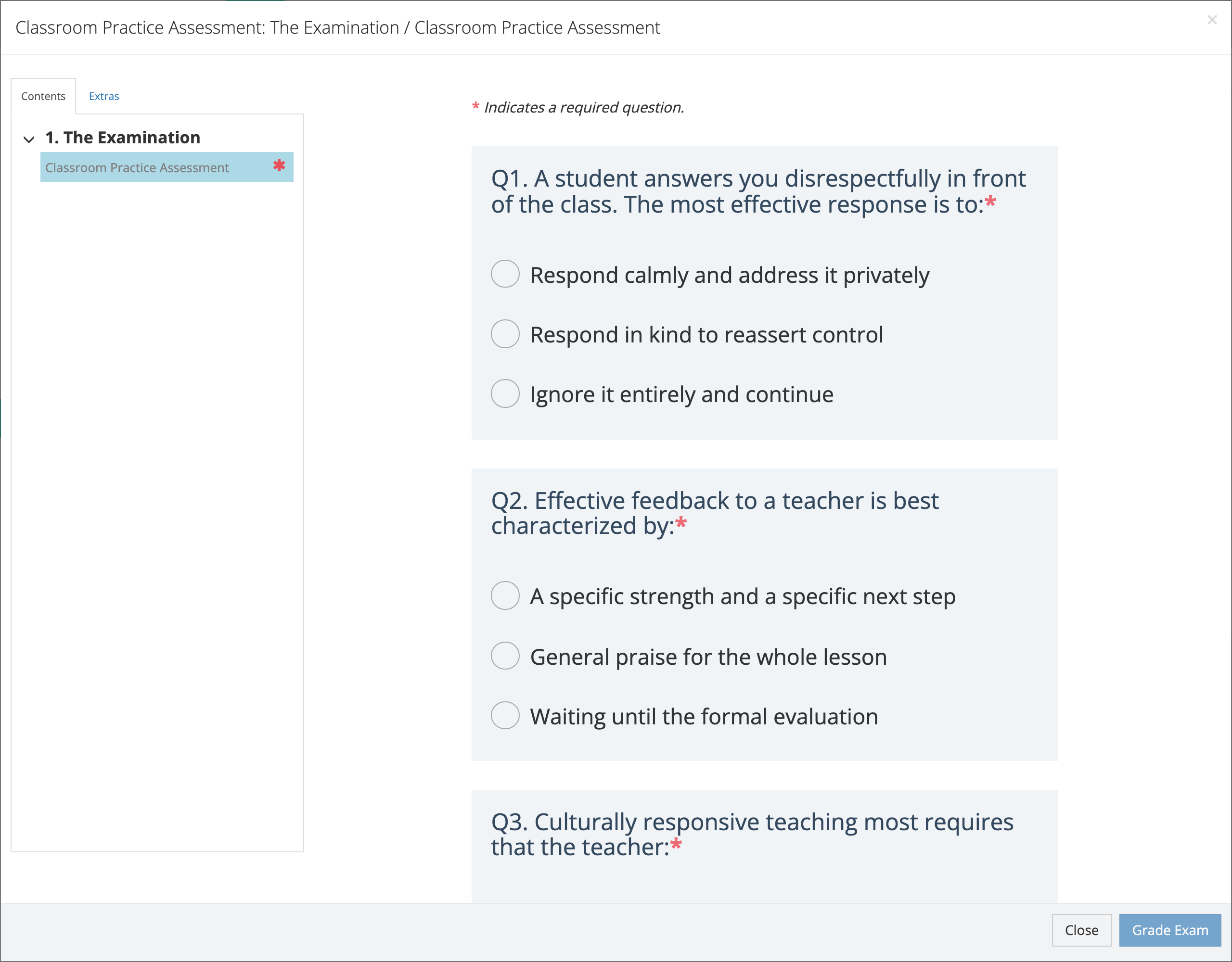
The player opens over the page. The Contents tab on the left lists the exam sections. In a linear assessment, later sections show (locked) until you finish the one before.
Answer the questions
Section titled “Answer the questions”The exam shows every question on one page. A red asterisk marks a required question.
- Multiple choice: select one answer.
- Multiple selection: select every answer that applies.
- Short answer: type your response.
Your answers save as you select them, so closing the player does not lose them.
Grade the exam
Section titled “Grade the exam”Select Grade Exam. Some exams do not show a score; on those, the button is Submit.
If a required question is blank, the player shows “Please answer all required questions.” and does not grade the exam.
After grading, the player shows your Grade as a percentage. When the publisher allows it, each question is marked with a green check or a red X so you can see which ones you missed. Select Next to continue when it appears.
If you did not pass
Section titled “If you did not pass”When the exam allows retakes, change your answers and select Re-grade Exam. The player counts each grading as an attempt and tells you which attempt is next. When attempts are limited, it shows how many you have, and your last one is marked FINAL ATTEMPT.
If you run out of attempts on a required exam, the player shows “You have exceeded the number of attempts at this exam. You will need to retake this content at a later date.”
Check your result
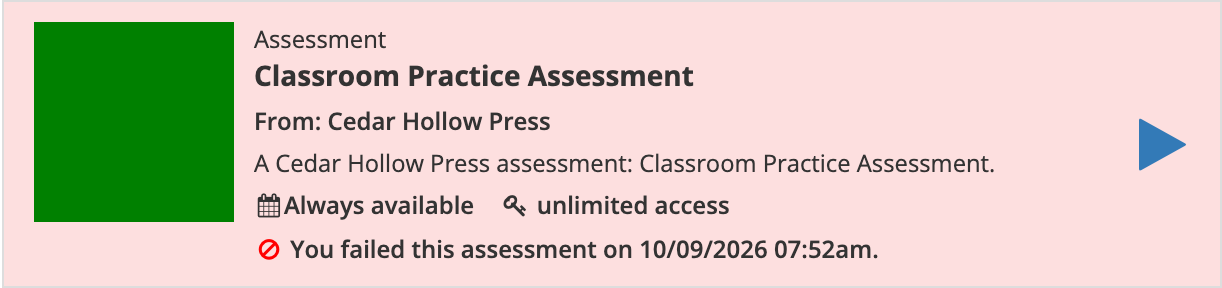
Section titled “Check your result”Close the player to return to Assessments. The card shows your result, for example “You passed this assessment on…” or “You failed this assessment on…”. The Passed and Failed filters list assessments by result.
A passed assessment also appears on My Transcripts. If it awards a certificate, see Downloading Certificates.