

Certificates & Transcripts
Viewing My Transcripts
Find your completed courses, assessments, and recorded PD hours on the My Transcripts page.
Your transcript is the record of professional learning you have completed in Edge. It holds two kinds of entries:
- Completions that Learn records for you when you finish a course, assessment, or learning path.
- PD hours that a system administrator enters for training that happened outside Learn, such as a district PD day, a summer institute, or a conference.
Opening My Transcripts
Section titled “Opening My Transcripts”- Open the My Home sidebar.
- Under the REVIEW heading, select My Transcripts.
My Transcripts appears for every user when Learn is turned on for your district.
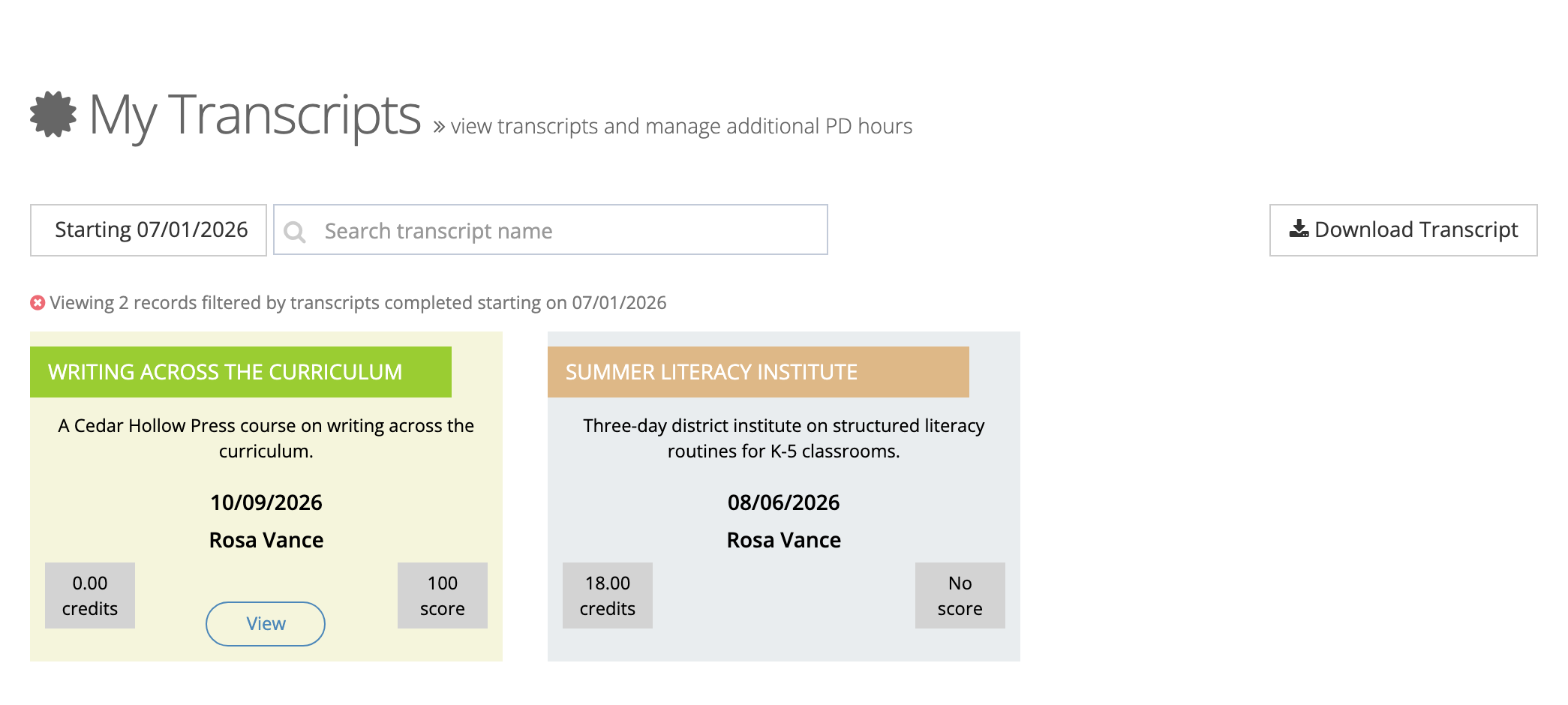
Reading a transcript card
Section titled “Reading a transcript card”Each entry is a card. A card shows:
- The content name in the colored ribbon at the top
- The description
- The completion date
- Your name
- credits: the credits or hours the entry is worth (“No credits” when none were set)
- score: your final score (“No score” when the content does not track a score)
The colors tell you where an entry came from:
- A green ribbon on a beige card is a completion that Learn recorded.
- A tan ribbon on a gray card is an entry that an administrator added. See Understanding Professional Development Hours.
Text on a card turns gray when the completion date is more than a year ago.
Choosing a date range
Section titled “Choosing a date range”The page opens filtered to the current school year, so the date button reads Starting 07/01/ followed by the year. Completions from earlier years are hidden until you change the range.
- Select the date button.
- Choose Last 30 Days, Last 90 Days, This Month, This Quarter, Last Year, This Year, or All Time. This Year and Last Year follow the July 1 to June 30 school year.
- To set your own range, enter a Start Date and an End Date, then select Apply.
The line above the cards says how many records you are viewing and which filter is applied.
Searching
Section titled “Searching”Type in Search transcript name to narrow the cards. The search matches the name of the Learn course, assessment, or learning path. Entries an administrator added are not linked to Learn content, so the search does not find them. Use the date range to find those.
Viewing a certificate
Section titled “Viewing a certificate”Completion cards have a View button. Select it to open the certificate for that completion. See Downloading Certificates for what happens next.
An administrator-entered card shows View only when the administrator attached a certificate file to it.
Downloading your transcript
Section titled “Downloading your transcript”Select Download Transcript to save your transcript as a PDF. See Managing Your Training Records.
When something is missing or wrong
Section titled “When something is missing or wrong”You cannot add, edit, or delete transcript entries yourself. If a completion is missing, check the date range first. If an entry is wrong, or you need outside training recorded, contact your district’s system administrator.
Your transcript shows only active entries. An administrator can mark an entry inactive, which hides it from this page.
Proctored assessment results that lead to a certification appear on a separate page, My Certifications. See Viewing Your Assessment Certifications.