

Learn Reports
Transcripts Report
Review and export completed content, scores, and credits or hours for the people in your organizations.
The Transcripts Report lists every completed piece of content for the people you can see, with scores and credits or hours. Use it to answer “what did our teachers complete this year?”, to gather records for license renewal, or to hand a principal a per-teacher summary.
Role required: reporter
Open the report
Section titled “Open the report”- In the left menu, select Reports > Learn Reports.
- On the Transcripts card, select View.
The report opens filtered to the current school year (July 1 to June 30) and to active users.
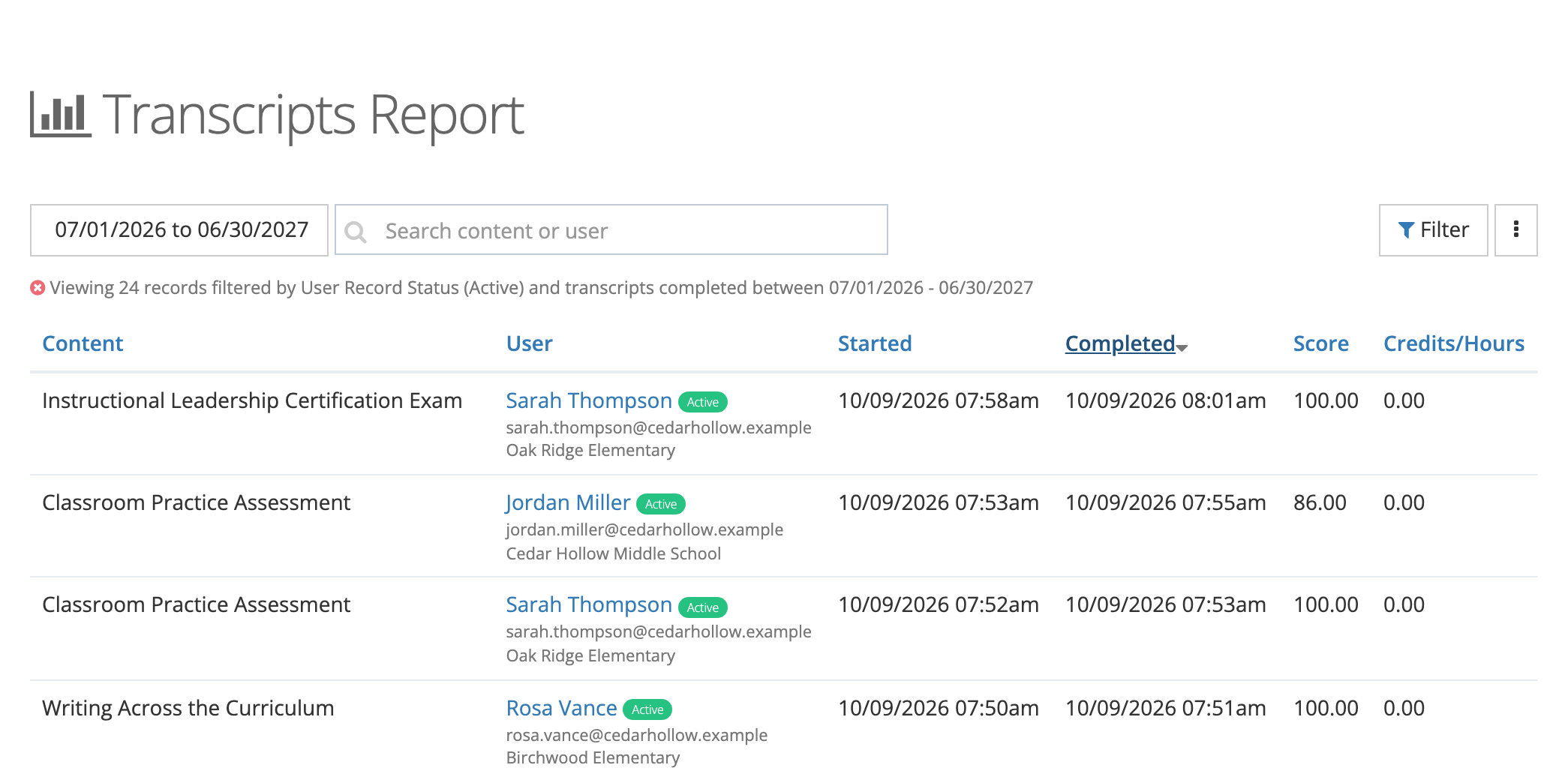
Columns
Section titled “Columns”| Column | What it shows |
|---|---|
| Content | The name of the completed content or transcript entry. |
| User | The person’s name (a link to their user record), an Active or Archived badge, their email, and their organizations. |
| Started | When the person started. |
| Completed | When the person finished. |
| Score | The score recorded on the transcript, if any. |
| Credits/Hours | Credits or hours recorded on the transcript. Learning paths show no credits here. |
Select a column heading to sort by it.
Search and date filter
Section titled “Search and date filter”- Type in Search content or user to match the name of the content a transcript came from, or a person’s first or last name. Records an administrator entered by hand (with no content attached) are not found by name, even though the Content column shows one. Find them by searching for the person.
- The date button filters by the Completed date. Choose a preset (Last 30 Days, Last 90 Days, This Month, This Quarter, Last Year, This Year, All Time) or enter a Start Date and End Date and select Apply.
Filters
Section titled “Filters”Select Filter to open Filter Transcript Report, set any of these, and select Filter:
- Content: one or more courses, assessments, or other content.
- Content Bundles: content that belongs to the bundles you pick.
- Users: one or more people.
- User Record Status: Active by default. Add Archived to include people who have left the district.
- Organizations: people who belong to the schools or offices you pick.
The line above the table lists every filter in effect.
Export
Section titled “Export”Open the menu button (three dots) at the top right:
- Export PDF by User: a landscape PDF with a separate page for each person. Each page lists that person’s transcript entries (Content, Person, Started, Completed, Score, Credits/Hours) and a Total Credits line.
- Export CSV: a spreadsheet with the columns Content, Person, Email, Organization, Started, Completed, Score, and Credits/Hours.
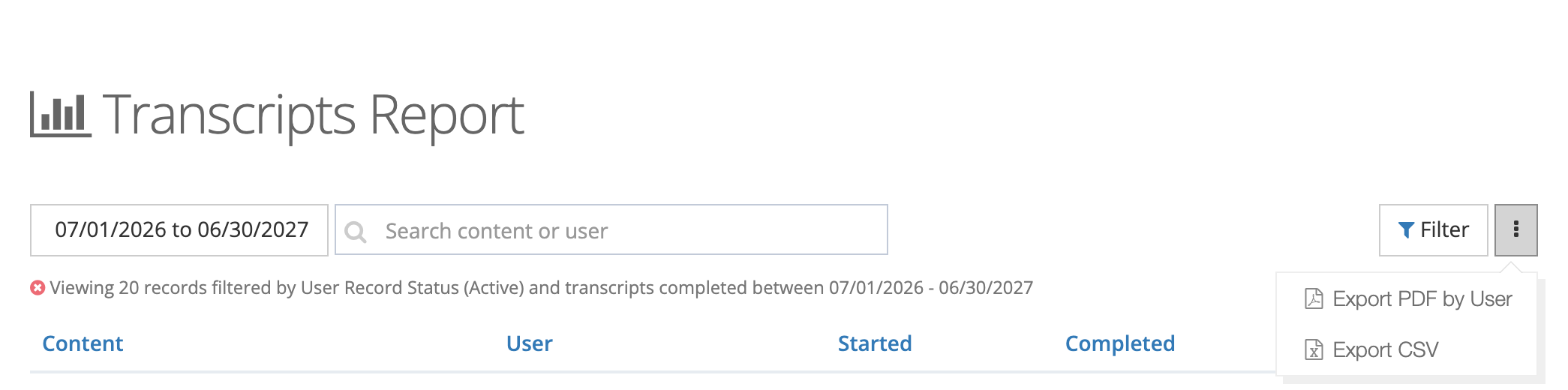
Both exports use your current search, date range, and filters. A progress window shows Exporting…, and the file downloads when it is ready.
To print one teacher’s record, filter Users to that teacher, set the date range, and select Export PDF by User.
One organization’s transcripts
Section titled “One organization’s transcripts”Organization administrators who also have the reporter role can open this report for a single organization from the Admin Dashboard: select View more on the All Completed tile, or the Transcripts link on the REPORTS card. It has the same columns, filters, and exports.
Related articles
Section titled “Related articles”- Managing transcript records: add, edit, import, or delete transcript entries (system administrators).
- Viewing my transcripts: what a teacher sees in My Transcripts.