
Courses
Taking Courses
Navigate through course content, complete activities, and track your progress.
Once you’re enrolled in a course, you can start learning immediately. The course player provides an intuitive interface for working through content, tracking your progress, and completing assessments.
Starting a Course
Section titled “Starting a Course”You can access your courses from several locations in the Learn module:
- From the Dashboard: Click the play button on any course in your “Continue Content” or “Required Content” sections
- From Course Lists: Navigate to specific course types (like Videos or Assessments) and click the play button
- From Content Libraries: Browse content libraries and click on individual courses
When you click to start a course, the course player opens with your content ready to begin.
Understanding the Course Player Interface
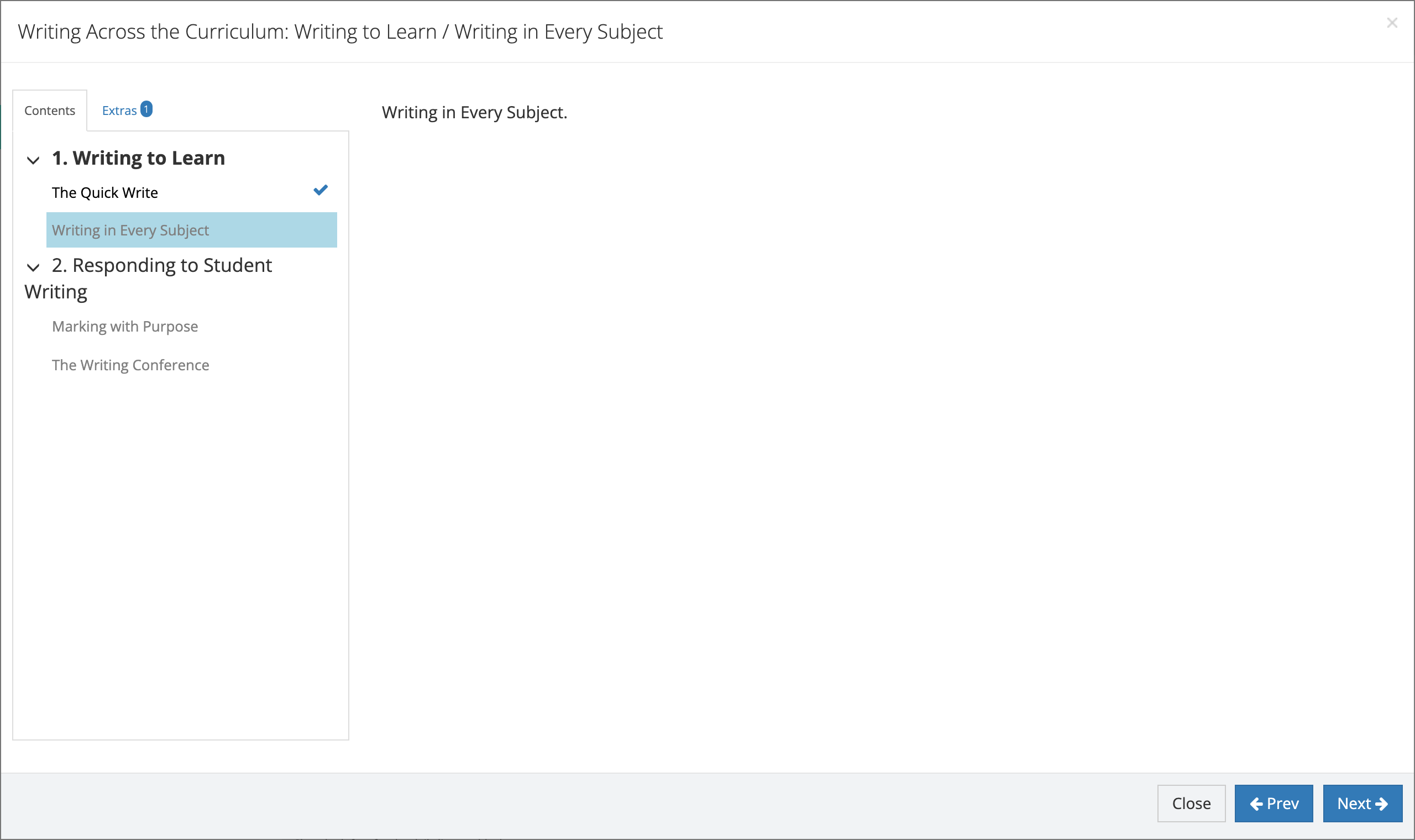
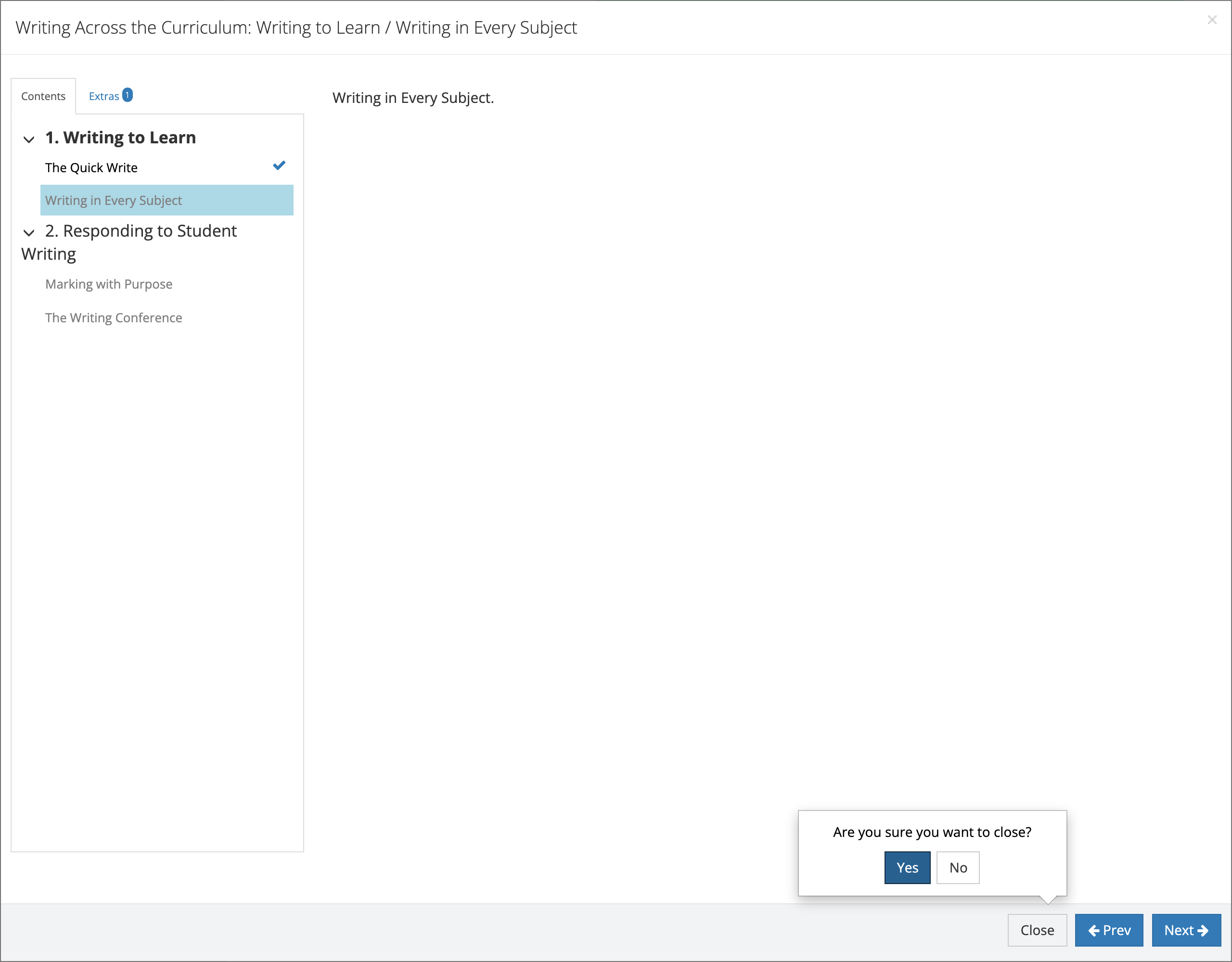
Section titled “Understanding the Course Player Interface”The course player displays your current progress and provides easy navigation through the course structure:
Course Navigation Panel
Section titled “Course Navigation Panel”The left side of the player shows your course outline organized by chapters and sections. Each chapter can be expanded to reveal its sections underneath.
Progress Indicators: You’ll see progress bars next to chapter names showing your completion percentage for that chapter.
Current Location: The chapter and section you’re currently viewing are highlighted and expanded by default.
Content Display Area
Section titled “Content Display Area”The main area shows your current content, which might include:
- Videos with playback controls
- PDF documents for reading
- Interactive resources and activities
- Exam questions for assessments
Navigation Controls
Section titled “Navigation Controls”At the bottom of the player, you’ll find:
- Previous button to go back to the prior section
- Next button to advance to the next section
- Course menu to jump to specific chapters or sections
Moving Between Sections and Chapters
Section titled “Moving Between Sections and Chapters”You have multiple ways to navigate through your course content:
Sequential Navigation
Section titled “Sequential Navigation”- Use the Next and Previous buttons at the bottom of the player to move through content in order
- The system automatically advances you through sections within each chapter
Direct Navigation
Section titled “Direct Navigation”- Click on any chapter name in the left navigation to expand it
- Click on any section within a chapter to jump directly to that content
- You can move freely between any unlocked sections
Note: Some courses may require you to complete sections in order before accessing later content.
Completing Different Types of Content
Section titled “Completing Different Types of Content”Your courses may contain various types of learning materials:
Video Content
Section titled “Video Content”When viewing videos:
- Play Controls: Use standard video controls to play, pause, and seek through content
- Progress Tracking: The system automatically tracks your viewing progress
- Auto-Save: Your position is saved every few seconds so you can resume where you left off
- Completion: Videos are marked complete when you’ve watched the full duration
Reading Materials and PDFs
Section titled “Reading Materials and PDFs”For text-based content:
- Scroll through the material at your own pace
- Download PDFs if available for offline reading
- Mark Complete: Some reading materials require you to manually mark them as complete
Interactive Resources
Section titled “Interactive Resources”Some sections contain interactive elements:
- Follow any on-screen instructions for activities
- Complete all required interactions before proceeding
- Some resources may open in new windows or tabs
Exams and Assessments
Section titled “Exams and Assessments”When you encounter exam sections:
- Read Instructions: Review any specific directions for the assessment
- Answer Questions: Complete all required questions
- Submit Responses: Click submit when finished with each question or section
- Review Results: View your score and feedback after completion
Proctored Assessments: Some exams require supervision. You’ll see a “Proctored” indicator and need to follow special procedures for these assessments.
Tracking Your Progress
Section titled “Tracking Your Progress”The system continuously monitors your advancement through courses:
Progress Indicators
Section titled “Progress Indicators”- Chapter Progress Bars: Show completion percentage for each chapter
- Overall Progress: Track your total course completion
- Section Status: Completed sections are marked with indicators
Automatic Saving
Section titled “Automatic Saving”Your progress is automatically saved as you work:
- Video Position: Resumes from where you stopped watching
- Completed Sections: Marked as finished when you complete them
- Exam Answers: Saved as you submit each response
Course Status
Section titled “Course Status”Your courses appear with different status indicators:
- Not Started: Available but not yet begun
- In Progress: Partially completed
- Completed: Fully finished
- Failed: Did not meet passing requirements (for assessments)
Resuming Courses
Section titled “Resuming Courses”You can easily pick up where you left off:
- Continue Content Section: Partially completed courses appear on your dashboard
- Last Position: The player opens to your most recent section
- Progress Maintained: All previous completion data is preserved
Managing Required Courses
Section titled “Managing Required Courses”Courses marked as required have special considerations:
Required Indicators
Section titled “Required Indicators”- Yellow highlighting in course lists indicates required content
- Due dates are displayed when specified
- Required badge appears on course cards
Completion Requirements
Section titled “Completion Requirements”- Full Completion: You must finish all sections and assessments
- Passing Scores: Meet minimum score requirements on exams
- Time Limits: Complete before any specified deadlines
Priority Display
Section titled “Priority Display”Required courses appear prominently:
- Featured in the “Required Content” section of your dashboard
- Listed first in course catalogs
- Highlighted with special formatting
Course Completion
Section titled “Course Completion”When you finish a course:
- Completion Status: The course is marked as complete in your records
- Certificates: Automatically generated if the course awards certification
- Transcript Entry: Added to your professional development transcript
- PD Hours: Credited to your continuing education totals
You can view all completed courses in your transcript and download certificates as needed for your professional records.